
Add Name & Date on Photo
Add Name and Date on Photo For Free, Crop your photo, and set the file size for SSC, UPSC, IBPS, police exams and government job passport photo forms.
Crop Photo
Live Preview
The lock keeps the shape of your photo. cm and inch use the DPI you set. Leave empty to keep your cropped size.
Leave file size empty if your form has no limit.
Upload And Crop
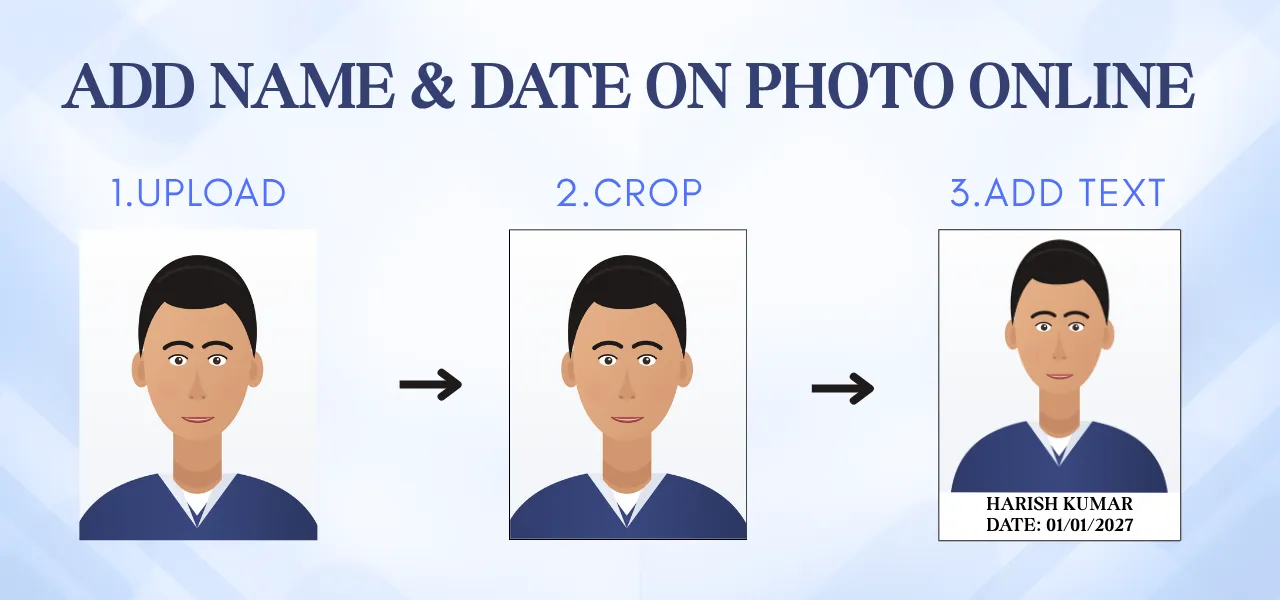
Pick a clear portrait, then drag the crop frame so your face is centred with a little space above the head. The 7:9 option matches the standard 3.5 × 4.5 cm frame.
Add Name, Date And Border
Type your name and the date the way your form shows it. The text appears below your face. Switch on a border only if the form asks for one.
Set File Size And Download
If your form has a KB limit, type it in the optional file size box. Your photo is compressed to that exact size and you see the real size before you save.
Name and Date Photo Features
Private by design
Your picture is processed by your own browser. Nothing is sent to a server, stored or shared, so ID-style photos stay with you.
Precise cropping
Move and resize a crop frame with locked ratios for passport, square and landscape shapes, or switch to free-form for full control.
Exact file size
Type a limit such as 45 KB and the photo is compressed to exactly that size. The real size is shown before you download.
Works on any device
Use it on a phone, tablet or computer. There is nothing to install and no account to create.
One-tap border
Turn on a clean black border with a single switch. It is drawn inside the picture, so your dimensions never change.
Name and date strip
Choose a solid, frosted or no-box background. Type your name and date your own way and they sit neatly below the face.
Every Exam Photo Tool
Photo Tools
Resize Image To KB
Exam Photo And Signature
Typical photo requirements by exam
A quick reference to help you pick the right settings. Requirements change from one notification to the next, so always compare them with the official notice for your exam.
| Exam | Photo Needs | Setup |
|---|---|---|
| SSC (CGL, CHSL, GD, MTS) | Recent colour photo with name and date of photograph printed on it. | Name and date strip, 7:9 crop |
| UPSC (CSE, NDA, CDS) | Recent photo showing the candidate's name and the date it was taken. | Name and date strip, 7:9 crop |
| IBPS / SBI / Banking | Clear passport-style photo on a plain background within a stated KB range. | 7:9 crop, then type the KB limit |
| Railway, State PSC, Police | Rules differ by notification: some want a stamp, some want a border or a fixed file size. | 7:9 crop, then type the KB limit from your notice |
3.5 × 4.5 cm in pixels
| DPI | Size (px) | Best For |
|---|---|---|
| 200 DPI | 276 × 354 | Small uploads with a low KB limit |
| 300 DPI | 413 × 531 | Standard online forms and print |
| 600 DPI | 827 × 1063 | High-quality printing |
The complete guide to exam application photos
What is a name and date photo?
A name and date photo is an ordinary passport-style portrait with the candidate's name and the date it was taken printed on a strip at the bottom. It is also called a DOP photo, short for date of photograph. You will meet it in online forms for government jobs, entrance tests and bank exams.
Instead of opening heavy design software, you can build the same layout here in under a minute. The strip adjusts to the size of your text, so the name and date always sit neatly with no wasted space.
Why do exams ask for it?
Many recruitment bodies request a printed name and date because it helps officials match the picture with your admit card and identity proof. It also shows at a glance how recent the photo is, which discourages old or borrowed pictures.
That is why a missing, cut-off or unreadable date is one of the most common reasons a photo is sent back for correction. Print it clearly, and use the date style that your notification shows.
How to use this tool
- Upload a clear portrait. Drop it on the card, paste it, or tap to pick one from your gallery.
- Crop the frame. Drag the box so your face is centred with a little space above the head. The 7:9 option matches the usual 3.5 × 4.5 cm shape.
- Add your details. Type your name and the date exactly as your notice shows it, for example DOP: 20-10-2026. Pick a text colour and background, and turn on the border only if the form asks for one.
- Set a size and download. If your form has a KB limit, type it in the file size box, check the real size beside the preview, then tap Download.
How to take a photo that passes first time
A good result starts with the original picture. Editing can fix layout and file size, but it cannot rescue a dark or shaky shot.
- Use soft daylight. Face a window so light falls evenly. Overhead lamps cast shadows under the eyes and chin.
- Pick a plain wall. A light, empty background keeps attention on your face and helps files stay smaller.
- Look straight ahead. Hold the camera at eye level with a relaxed face, both eyes open and shoulders square.
- Leave room to crop. Shoot from the chest up, a metre or two away, so cropping never costs you sharpness.
How to reduce photo size in KB without blur
File size depends mainly on two things: how many pixels the picture has and how strongly it is compressed. Heavy compression is what makes a photo look blocky and soft, so a good tool should protect quality first.
When you enter a KB limit here, the tool begins with high-quality compression. Only if the file is still too large does it reduce the pixel dimensions a little, which keeps faces far sharper than crushing the quality. If there is room to spare, it raises the quality again to use it. Finally the file is filled to land exactly on your number.
- Start with the sharpest original. Avoid screenshots and pictures forwarded through chat apps.
- Crop tightly. When your face fills the frame, fewer pixels are wasted on background.
- Shoot in good light. Grain in dark photos is hard to compress and inflates the file.
- Choose a realistic target. A very small number on a detailed portrait will always look soft.
Common mistakes that cause rejection
- Stretching or squeezing a picture to fit instead of cropping it.
- Photographing a printed photo or using a screenshot.
- Using a dark or old picture that no longer looks like you.
- Printing a date format that differs from the notification, such as DD-MM-YYYY versus DD/MM/YYYY.
- Covering the face with text, stickers or filters.
- Uploading without opening the saved file to confirm it looks sharp at full size.
Is it safe to edit photos online?
Passport photos are personal, so where the editing happens matters. Many websites send your file to a server, and you cannot see how long it is kept. This tool works differently: cropping, text, border and compression all run inside your own browser, and the picture never leaves your device.
You can confirm this yourself by watching the network panel in your browser while you tap Download. Even so, it is wise to avoid posting your edited photo in public groups. Our Privacy Policy has more detail.
Final checklist before you submit
- Your face is clear, centred and well lit, with eyes open.
- Your name is spelled exactly as in the application.
- The date is the day the photo was taken, in the format the notice shows.
- The file size is inside the limit shown on the form.
- The saved file opens properly and looks sharp when zoomed in.
Frequently asked questions
Need to resize an image to a specific size?
Use the all-in-one Image Resizer to hit an exact KB, MB or pixel size.